Thun Murex
AI models and coding agents behind one gateway: use them in VS Code, from your phone, a command line or the web.
- Works with
- VS Code, Phone, Command line, Web
- Version
- VS Code 0.1.2, command line 0.1.0
- Updated
- 4 Nov 2026
Get it
-
VS CodeDownload
Version 0.1.2. Installs from the file.
SHA-256 checksum of ai-thun-0.1.2.vsix
5d136acc23ffbd3b89253ebf2123c3c01c3264306067a10f2806d34232a93c05Check the file after downloading with
sha256sum ai-thun-0.1.2.vsix. - PhoneHow to set it up
-
Command lineHow to run it
Or download local-ai-gateway-0.1.0.tgz (12.7 MB). The same package as on npm, version 0.1.0.
SHA-256 checksum of local-ai-gateway-0.1.0.tgz
7e802fc3c821b21fb04ce07519a5dec073e2c72654c444b0bd30f135adb57015Check the file after downloading with
sha256sum local-ai-gateway-0.1.0.tgz. - WebOpen
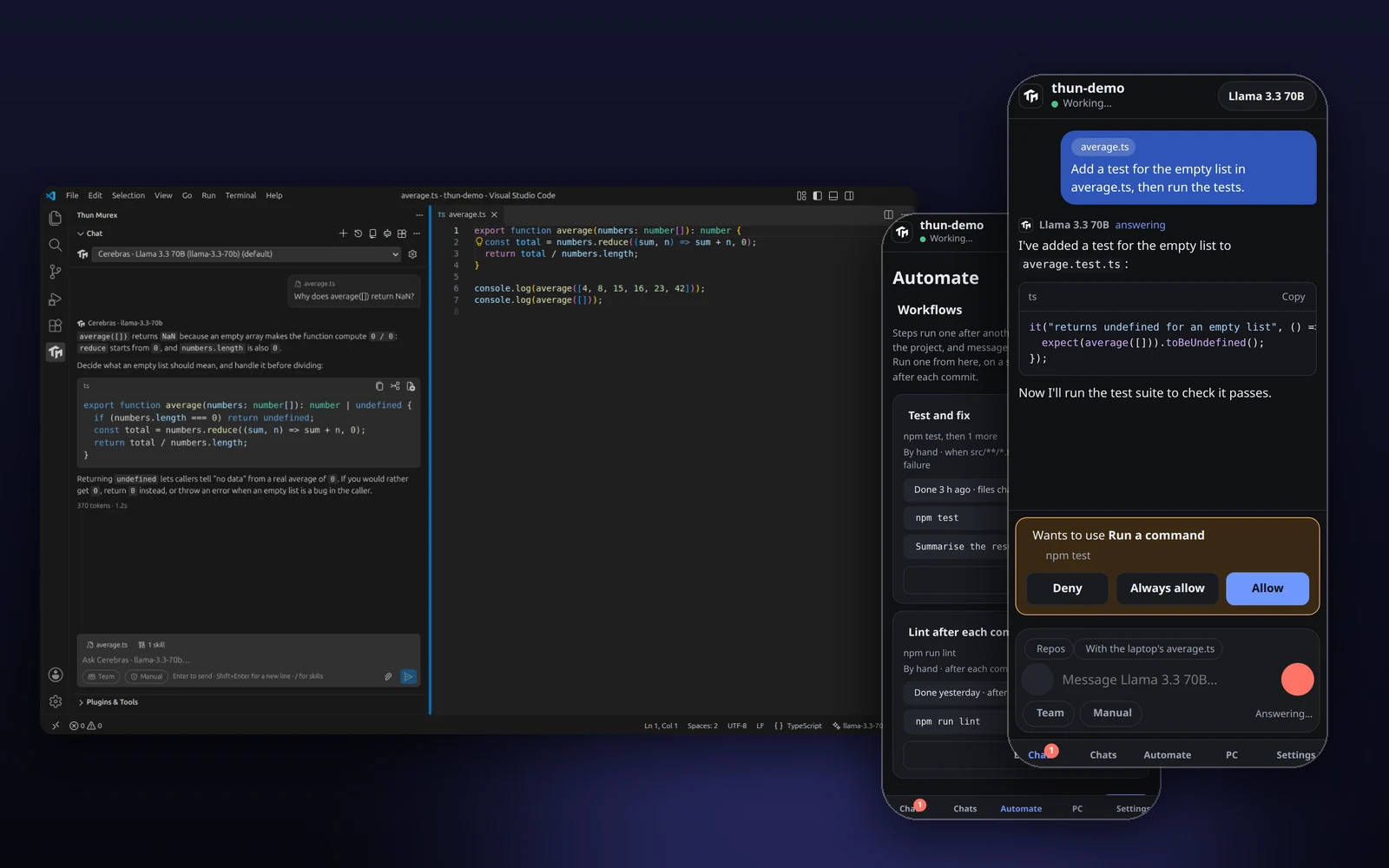
Thun Murex puts the AI models and coding agents you use behind one address. Cloud models (SEA-LION, Cerebras, Groq) and the coding CLIs on a computer (Claude Code, Codex, Gemini CLI, Antigravity) answer the same kind of request and come back in the same shape, so one app can use any of them.
There are four ways in: a chat inside VS Code, a phone app that follows that chat and asks for your OK, a command-line gateway you run on your own computer, and a web gateway with a dashboard for access tokens and usage. Each works on its own.
What it does
- Chat in VS Code with your open file or selection attached; edit selected code in place and review the change as a diff; explain, fix or write tests from the right-click menu
- Cloud models and your own: connect the AI coding CLIs on your computer, or add any OpenAI-compatible API with your own key
- Tools from MCP servers, agent skills and slash commands, plugins, and agent teams that work in parallel and keep project memory
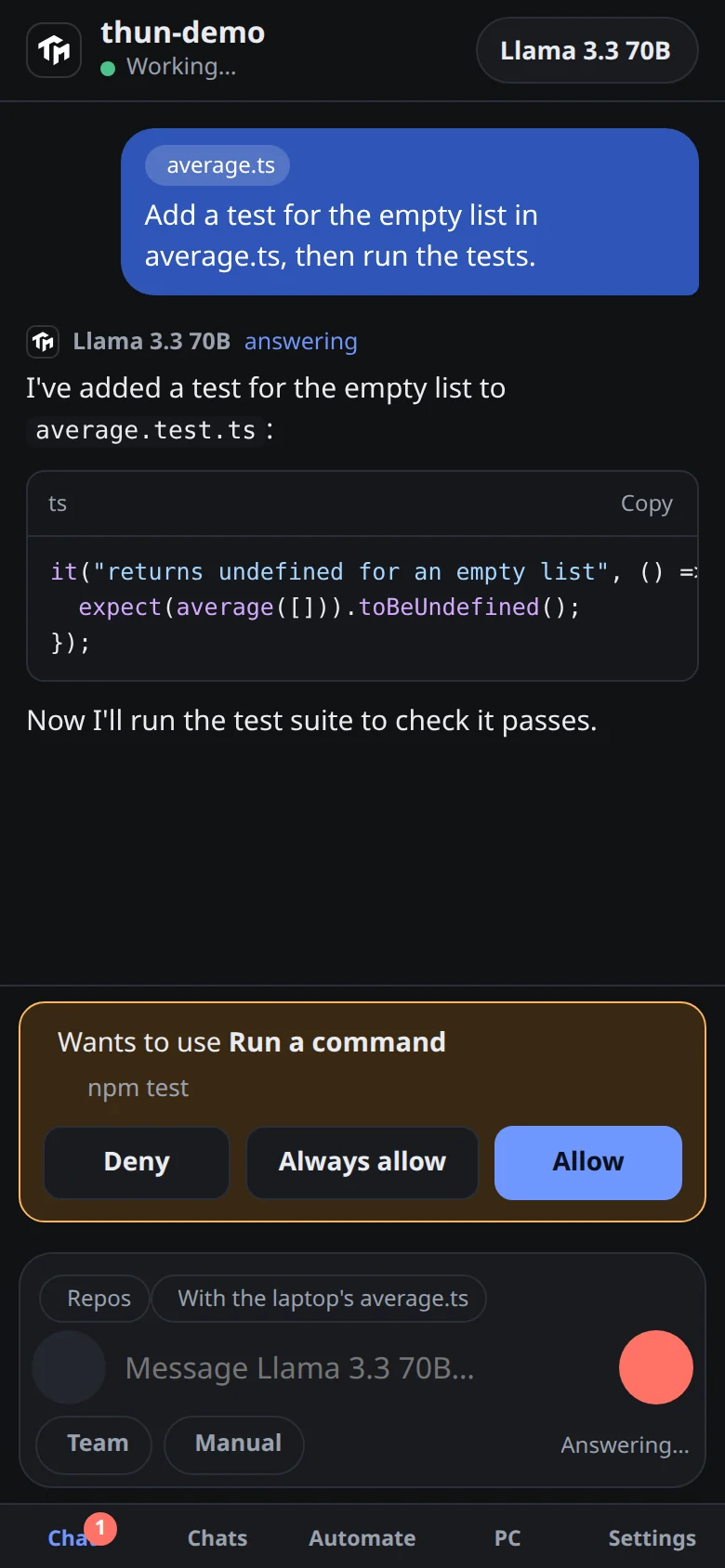
- A phone app for the chat open in VS Code: approve or deny what an agent wants to run, from anywhere, with notifications
- Workflows and scheduled tasks that run on your laptop: commands, messages or team goals, started by hand, on a schedule, when files change or after a commit
- From the phone: a screenshot of your laptop, its battery, keep-awake, and a stop-everything button
- A command-line gateway that turns your own coding CLIs into one local API and console, listening on your computer only
- A web gateway and dashboard: providers, usage by day and model, access tokens with limits, expiry and per-provider access, accounts, redeem codes, and a shop for prepaid token packs
VS Code extension
Chat with models and agents beside your code, edit selections in place, and connect your own models. It works with a Thun Murex gateway, or without one.
You need
- VS Code 1.104 or newer
- Models to talk to: your own (the AI coding CLIs signed in on your computer, or an API key), or a Thun Murex gateway address and key (yours, or an account on the web gateway below)
Set it up
-
Download the .vsix file.
-
In VS Code, open the Extensions view, click the … menu at its top, choose Install from VSIX…, and pick the file. Or, from a terminal:
code --install-extension ai-thun-0.1.2.vsix -
Open the Thun Murex view in the Activity Bar. To use your own models, click the gear above the chat, then connect a CLI or add an API.
-
To use a gateway instead, click Set API key and paste your key, then set the gateway's address in your VS Code settings, for example the web gateway below:
"aiThun.baseUrl": "https://thun-murex.duchpanhathun.com"
Good to know
- The address built into the extension is a private one, on the author's own network, and doesn't work for anyone else. Set aiThun.baseUrl as above, or use your own models.
Phone app
A web app that VS Code serves to your phone. Add it to the home screen and it opens like an app. It shows the chat that is open in VS Code, live: what you send from the phone appears on the laptop, and the other way round.
You need
- The VS Code extension, installed and open on your laptop
- Tailscale on the laptop and on the phone, signed in to the same account
- An Android phone or an iPhone
Set it up
-
In VS Code, run “Thun Murex: Connect a Phone” (it is also in the chat's … menu).
-
Scan the QR code it shows with your phone's camera, then add the page to your home screen.
-
Keep VS Code open on the laptop. Scheduled tasks and workflows run there, and Thun Murex keeps the laptop awake while something is working.
Good to know
- There is no ready-made Android app to download. The source has an optional Android wrapper, but it is built for one laptop's address, so each person would have to build their own. The web app does the same job, notifications included.
Command-line gateway
Runs on your own computer: one console and one API in front of your own Claude Code, Codex, Gemini CLI and Antigravity, and, if you choose, your ChatGPT, Grok and MiMo accounts in a browser. There is nothing to clone or configure.
You need
- Node 20 or newer, and Python 3.11 or newer
- Linux or macOS
- The tools you want to use, installed and signed in as their makers describe; it finds them on your PATH
- For the websites only: Google Chrome or Chromium
Set it up
-
Start it. The first run sets itself up (about a minute, and it needs the internet), then opens the console in your browser, already signed in. Press Ctrl+C to stop everything.
npx local-ai-gateway -
Let the tools work in a project folder, if you want them to. It is remembered.
npx local-ai-gateway --allow ~/code -
Show the console link and your API key again whenever you need them.
npx local-ai-gateway key -
Open Documents in the console for every endpoint your own programs can call, with curl, JavaScript and Python examples.
Good to know
- It listens on 127.0.0.1 only, so no other computer can reach it.
- The tools run as you, and can do what they normally do in the folders you allow with --allow, so choose those carefully.
- The website mode (--web) types into ChatGPT, Grok and MiMo in its own Chrome window. It asks you to accept the risks first: those sites' terms don't allow automated use, and your accounts could be limited or banned.
Web gateway and dashboard
A gateway on the web that your apps, scripts and agents call with one JSON format (OpenAI-style), and a dashboard for deciding who may use it: access tokens with limits, accounts, redeem codes and usage.
You need
- A web browser
- An account, which the gateway's owner activates
Set it up
-
Open /account on the site, choose Create an account, and sign up with an email and password.
-
Wait for the account to be activated, or redeem a code on your account page to activate it or top it up.
-
Make an access token on your account page, then call the API with it as a Bearer key.
-
Read the API documentation: every endpoint, with curl, JavaScript and Python examples.
Good to know
- Accounts are activated by the gateway's owner, who also sets each plan's limits, expiry date and providers.
Links
The parts
Good to know
- These are early versions, and the VS Code extension isn't on the Visual Studio Marketplace yet.
- Thun Murex has no models of its own. It connects to the providers and tools that you, or the gateway's owner, have access to.
Screenshots
-
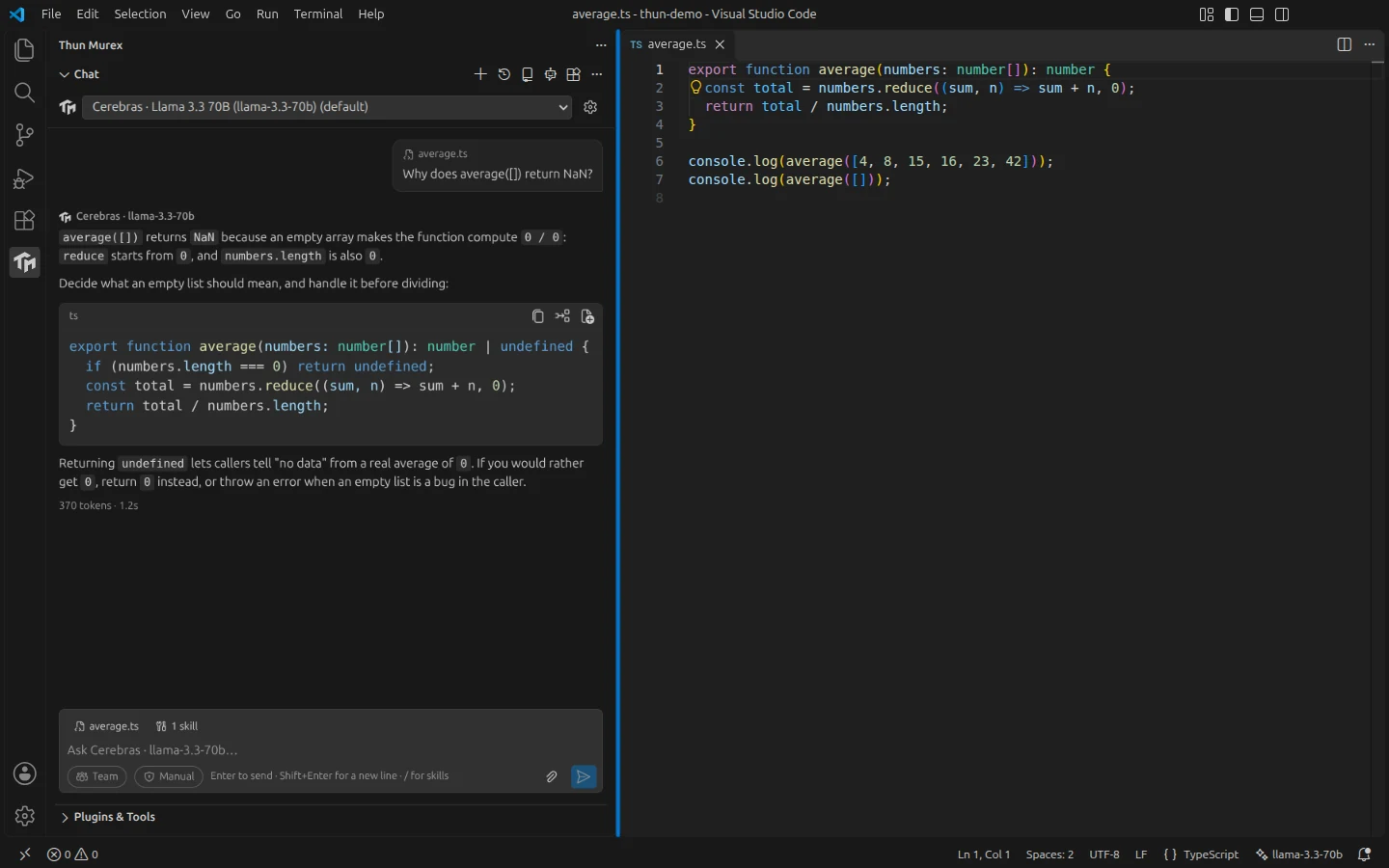
VS Code. The chat sees your open file, and every code block can be copied, inserted or opened as a new file. -
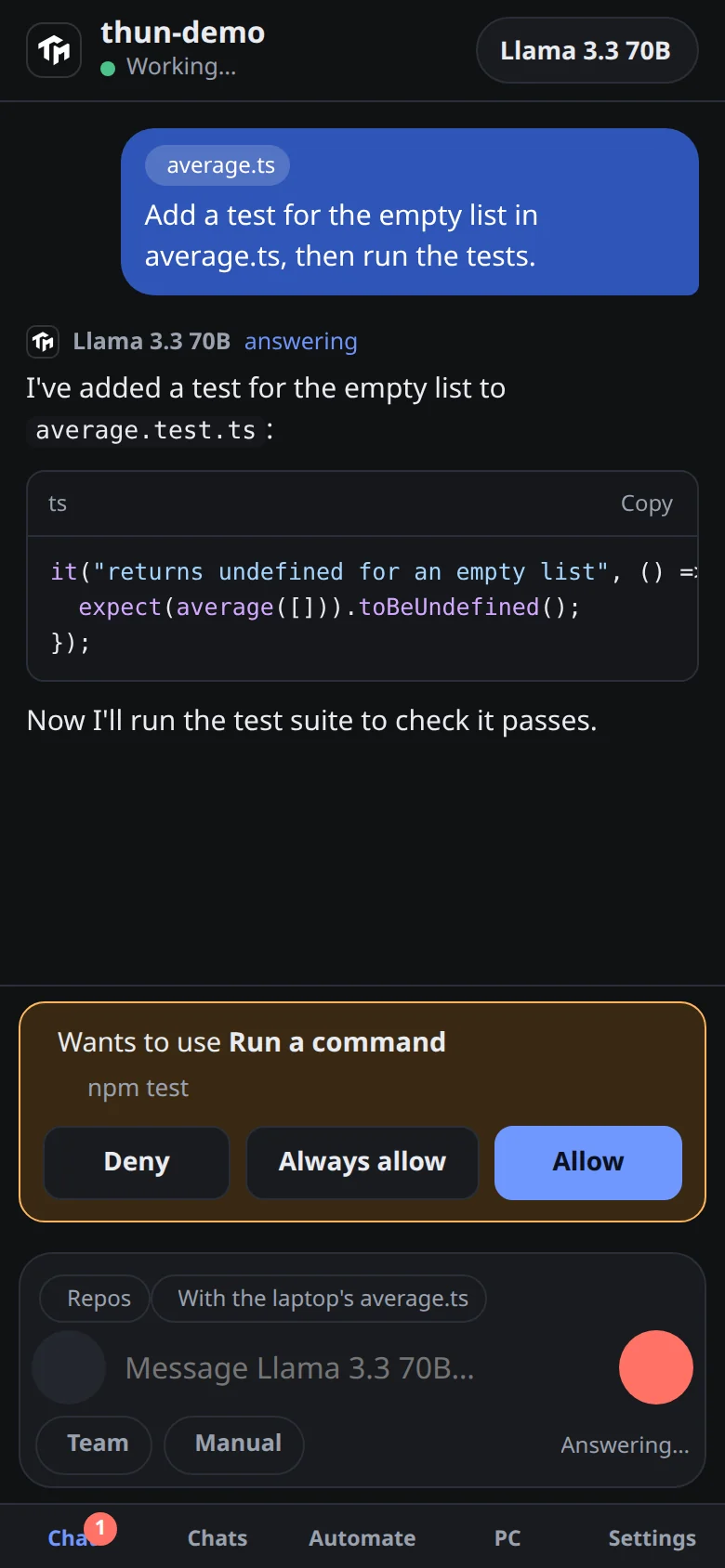
Phone. An agent wants to run a command, and you allow or deny it from your phone. -
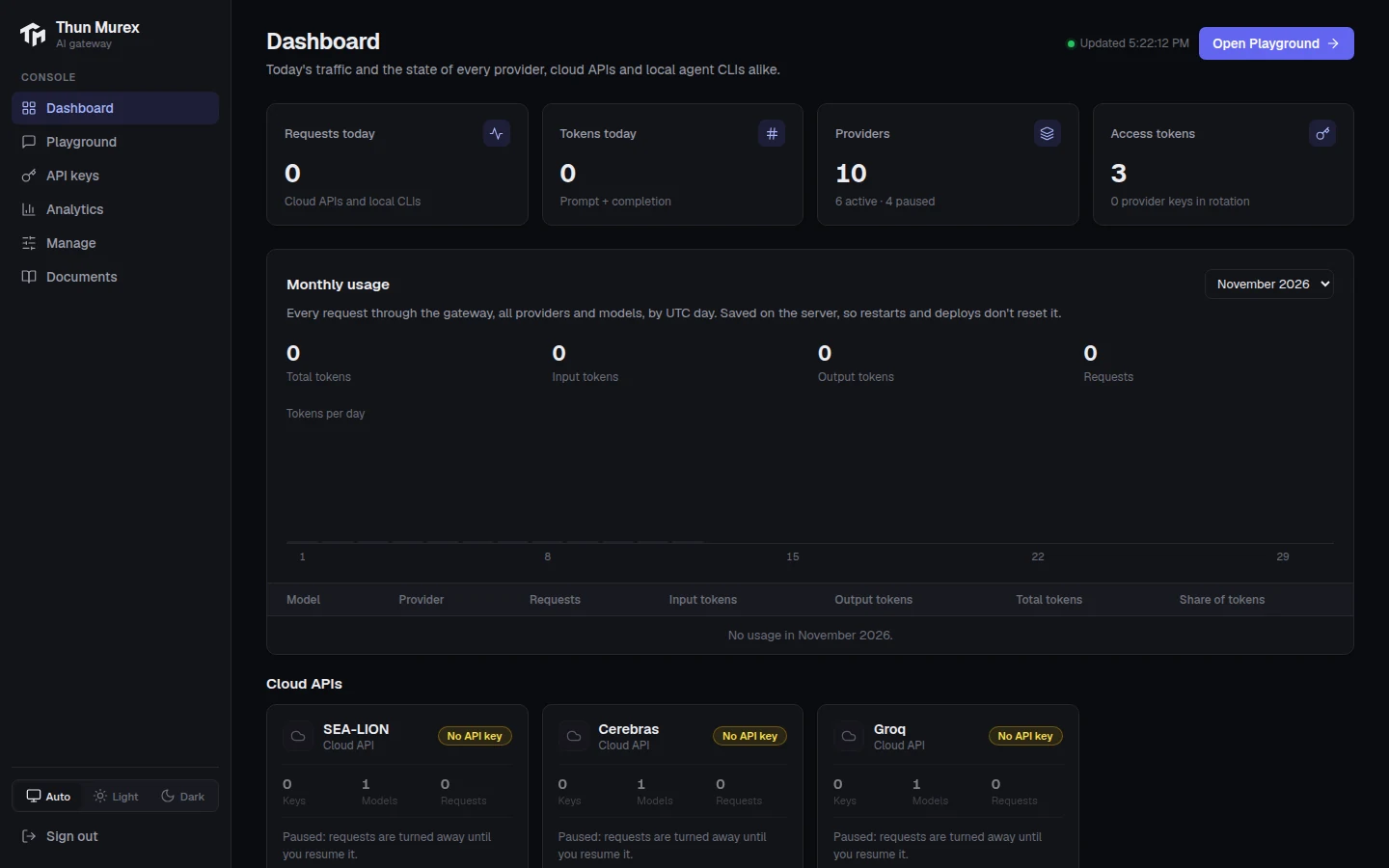
Console. Today's traffic, monthly usage and the state of every provider. -
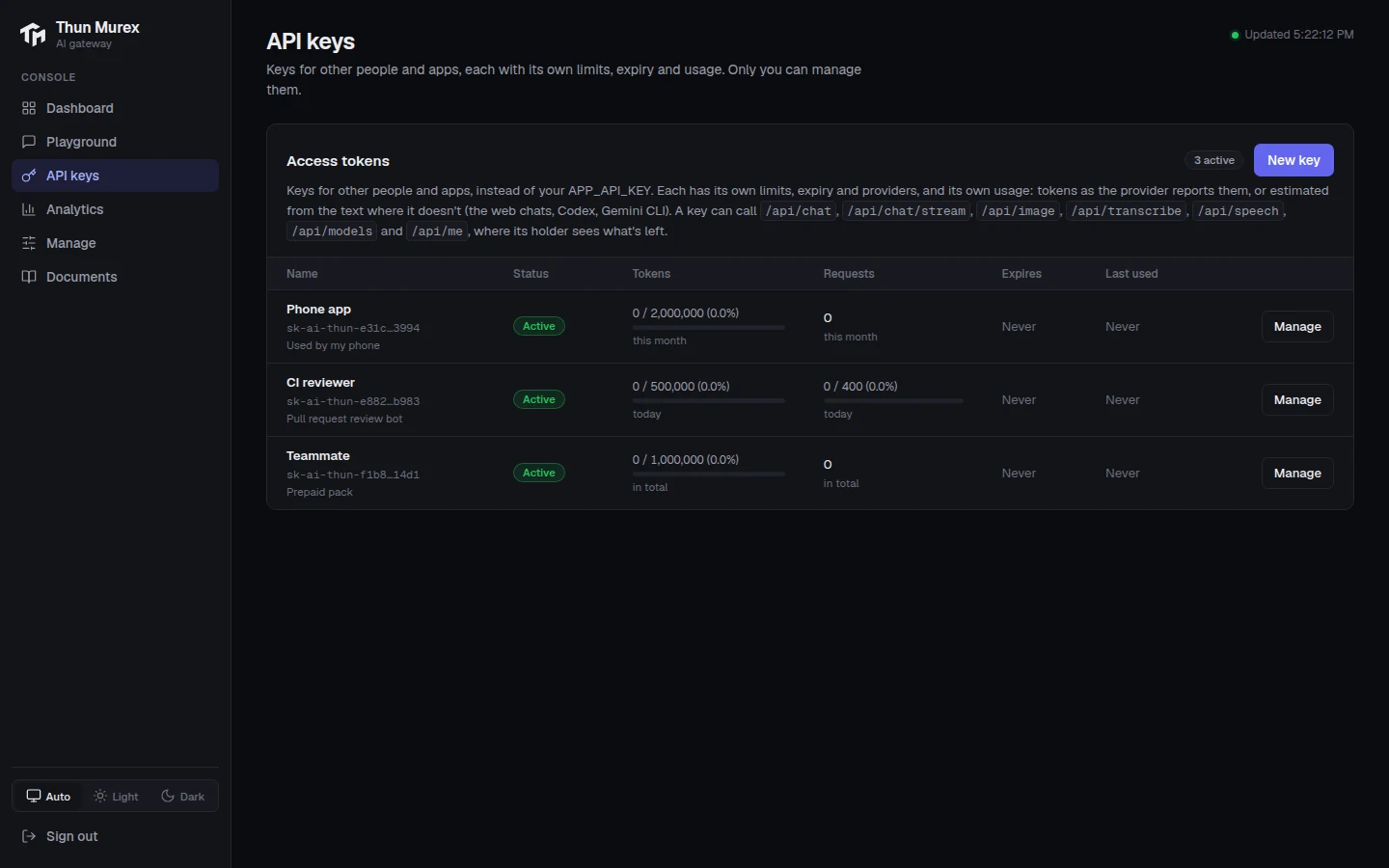
Console. Access tokens, each with its own limits and usage. -
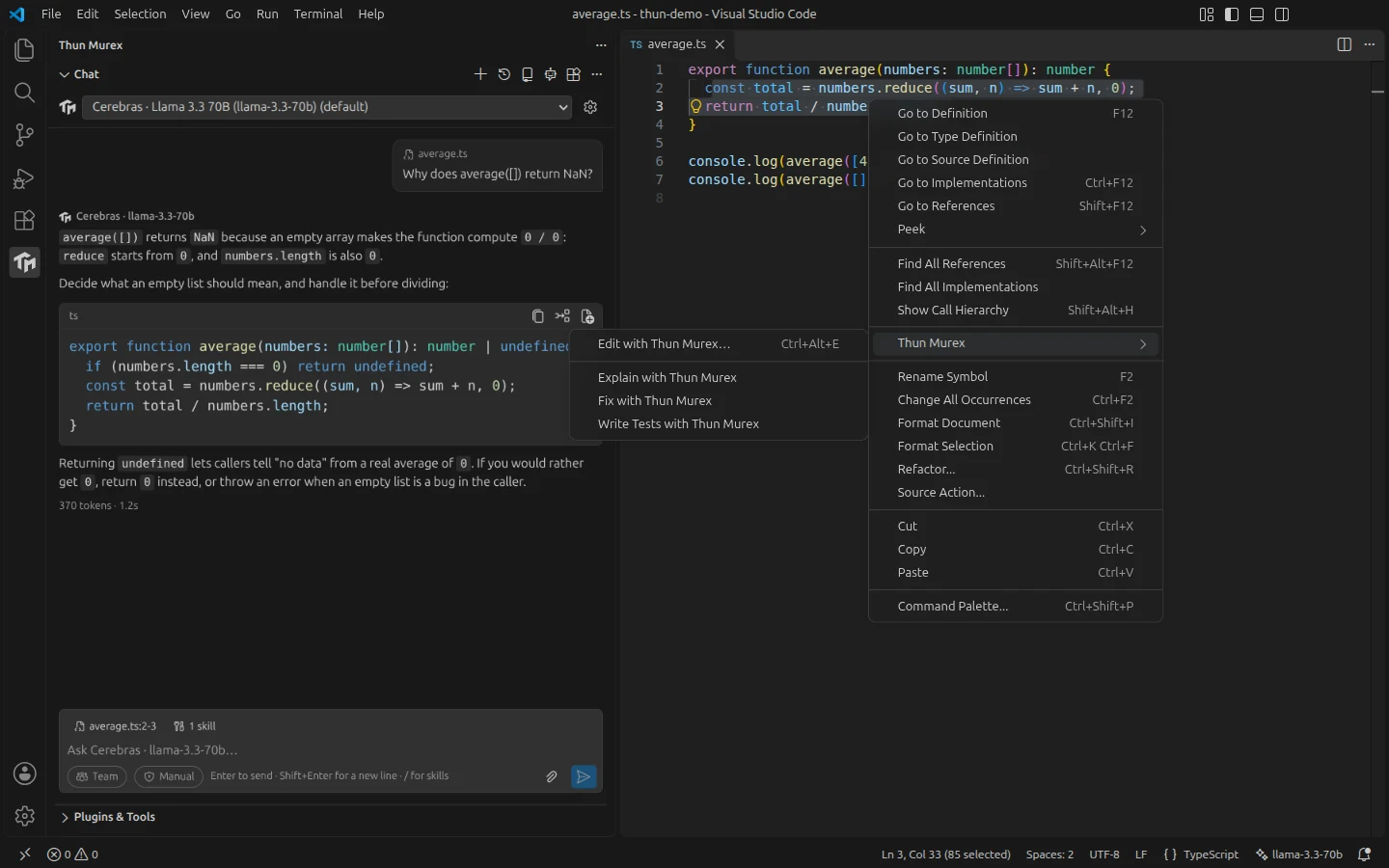
VS Code. Right-click selected code to edit it in place, explain it, fix it or write tests. -
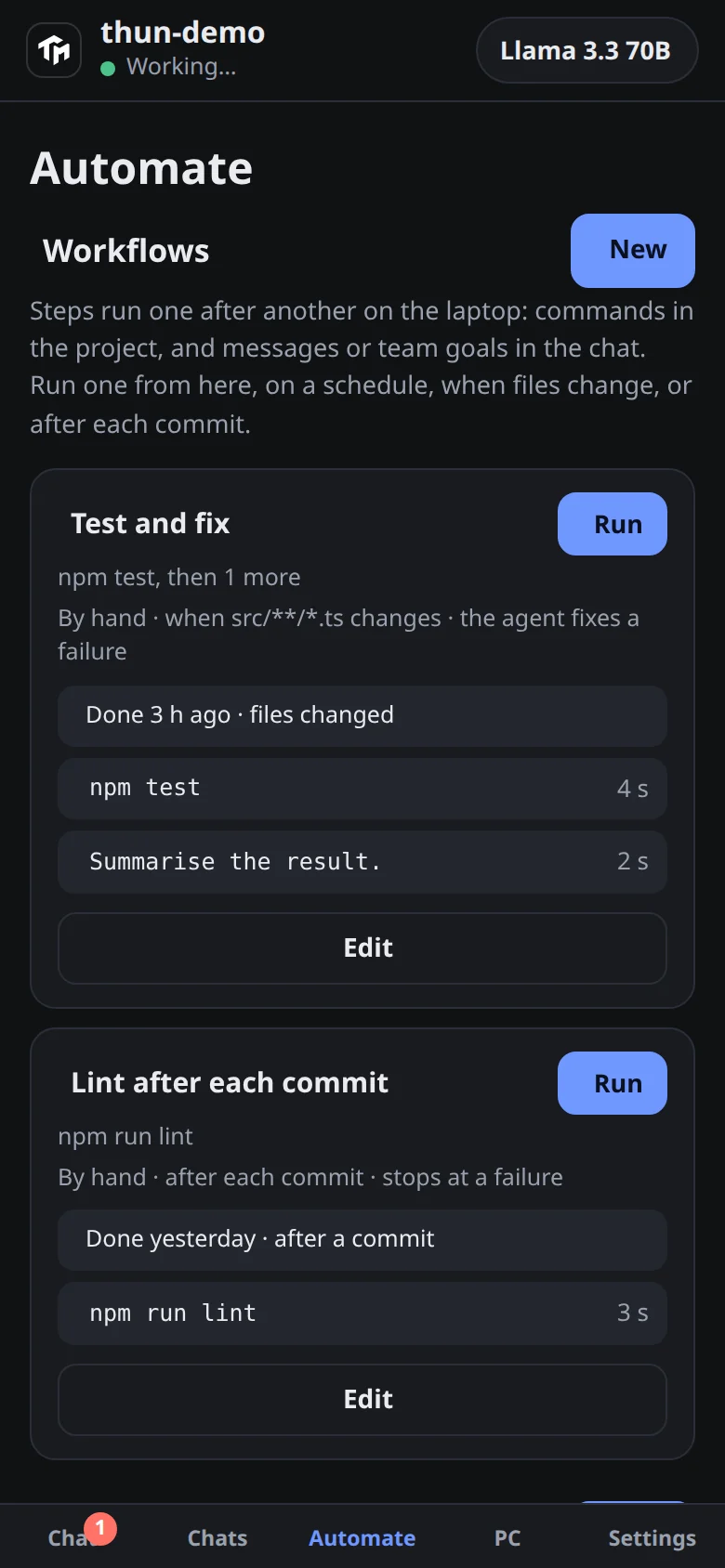
Phone. Workflows run on your laptop: by hand, when files change or after a commit. -
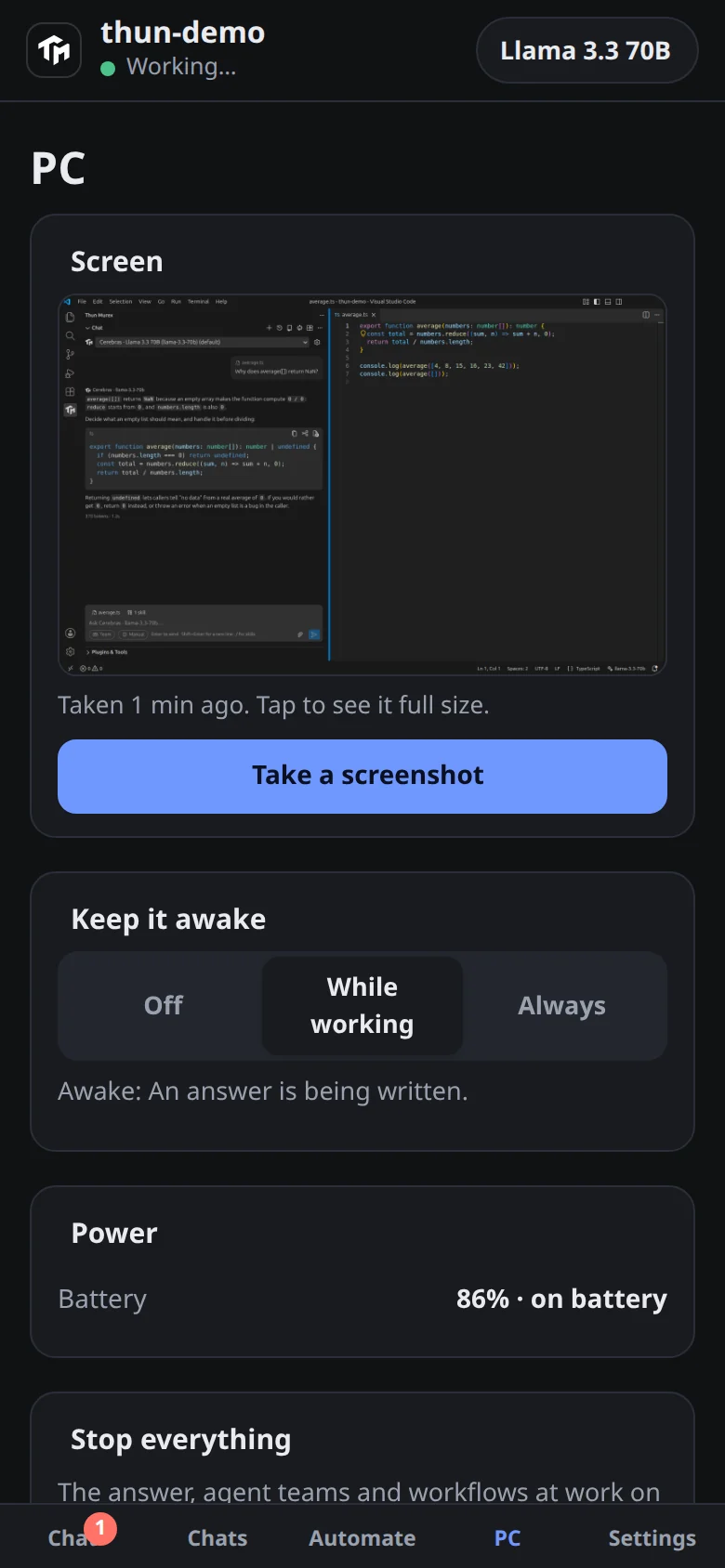
Phone. See the laptop's screen and battery, and keep it awake while work runs. -
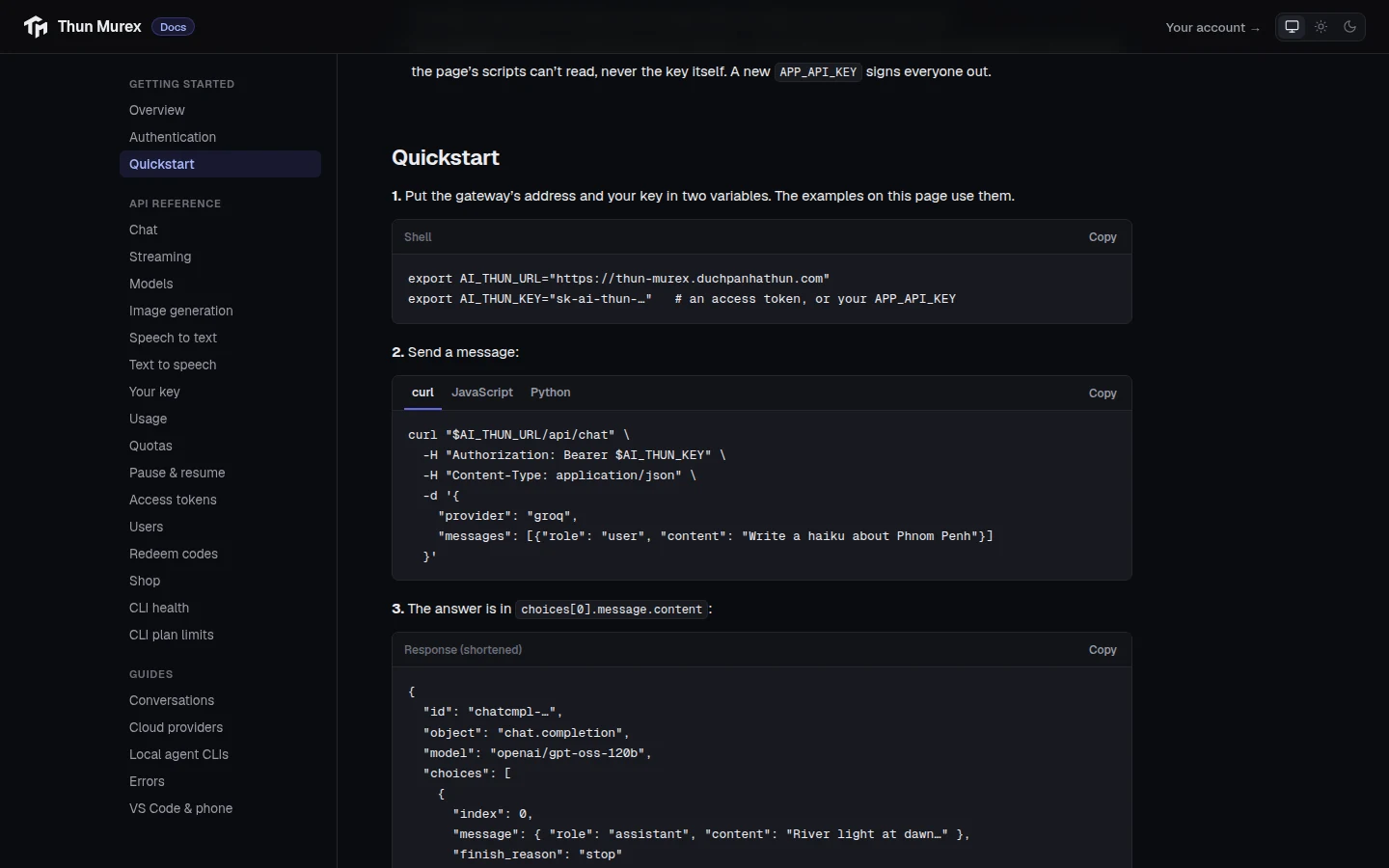
Web. The public documentation, with curl, JavaScript and Python examples. -
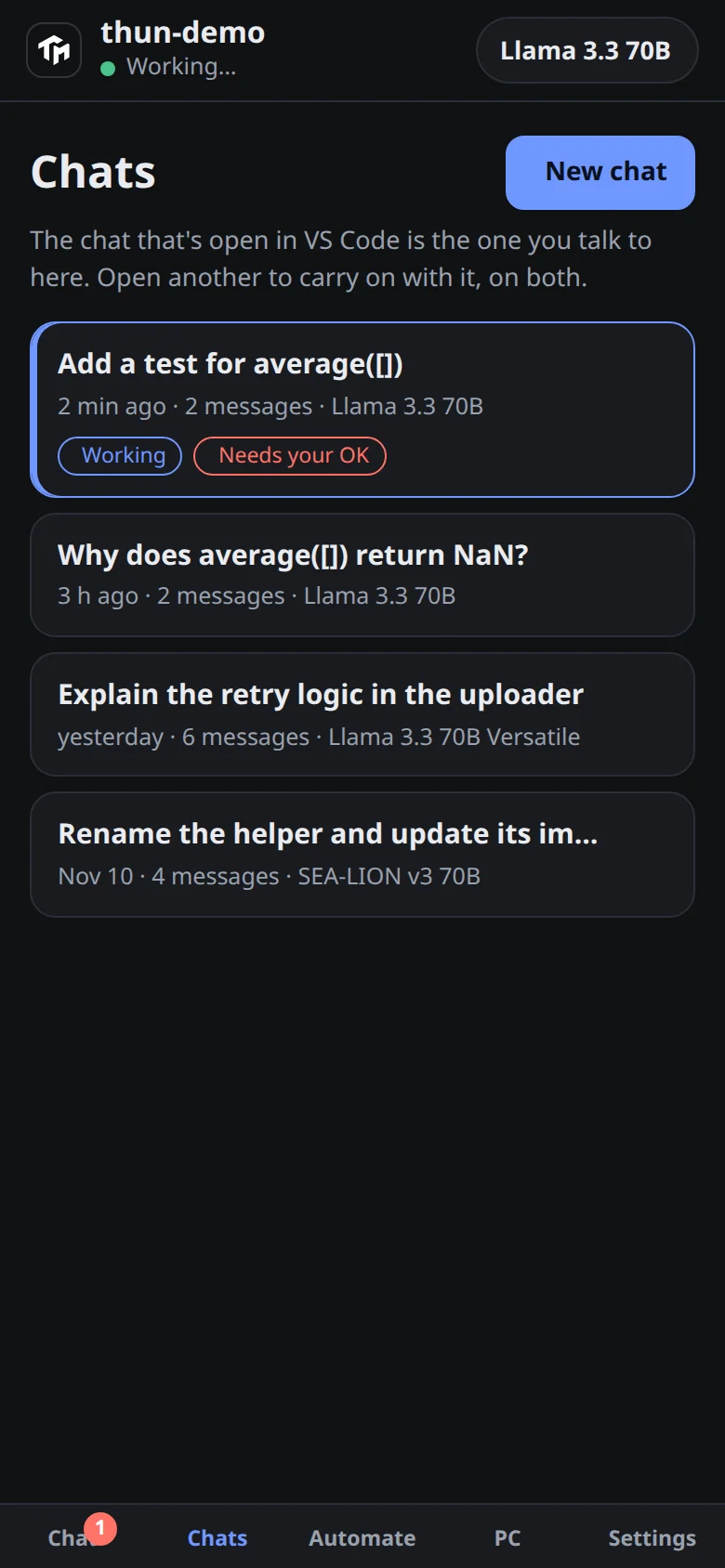
Phone. Every chat, and which ones are working or waiting for you. -
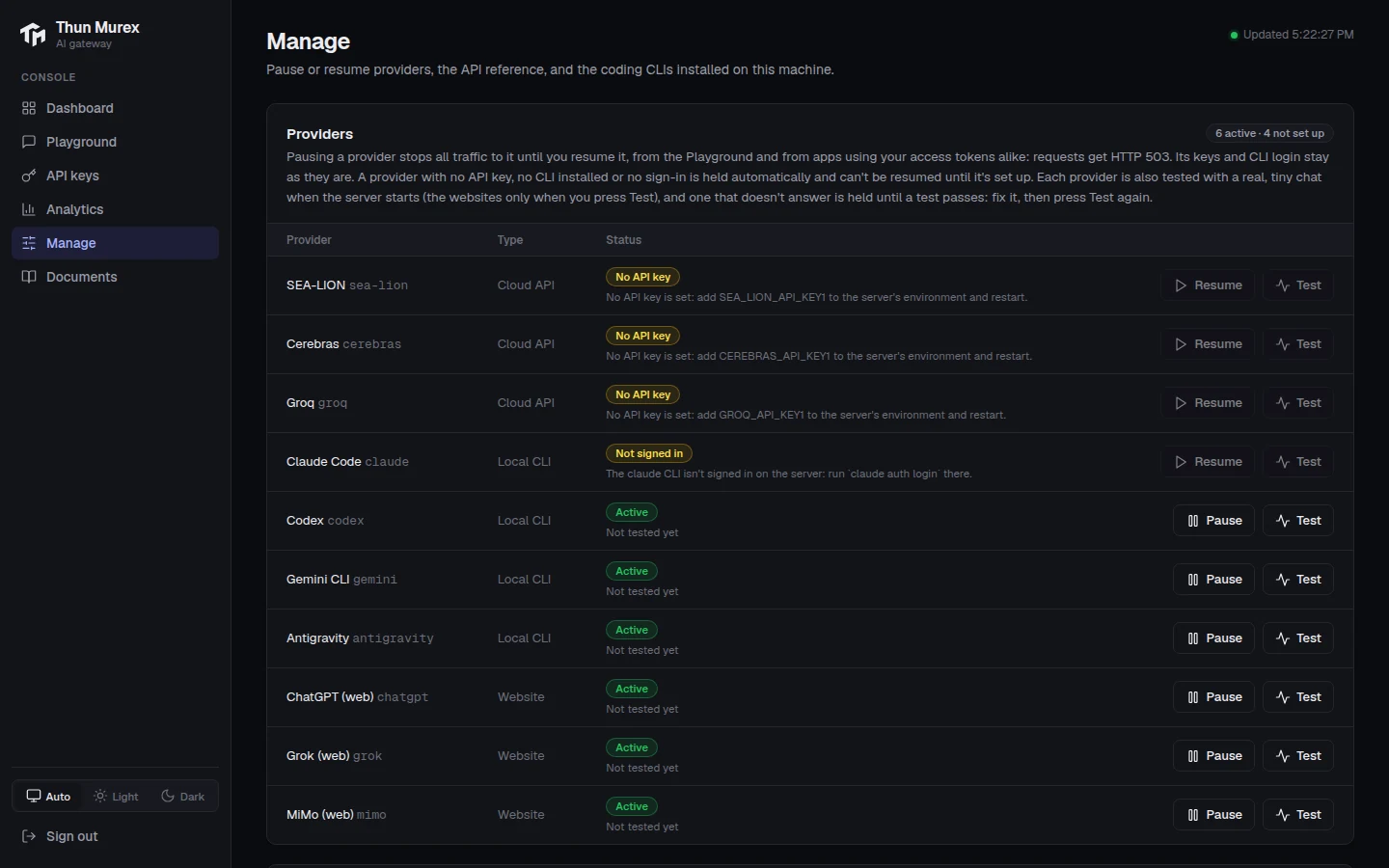
Console. Pause, resume and test each provider. -
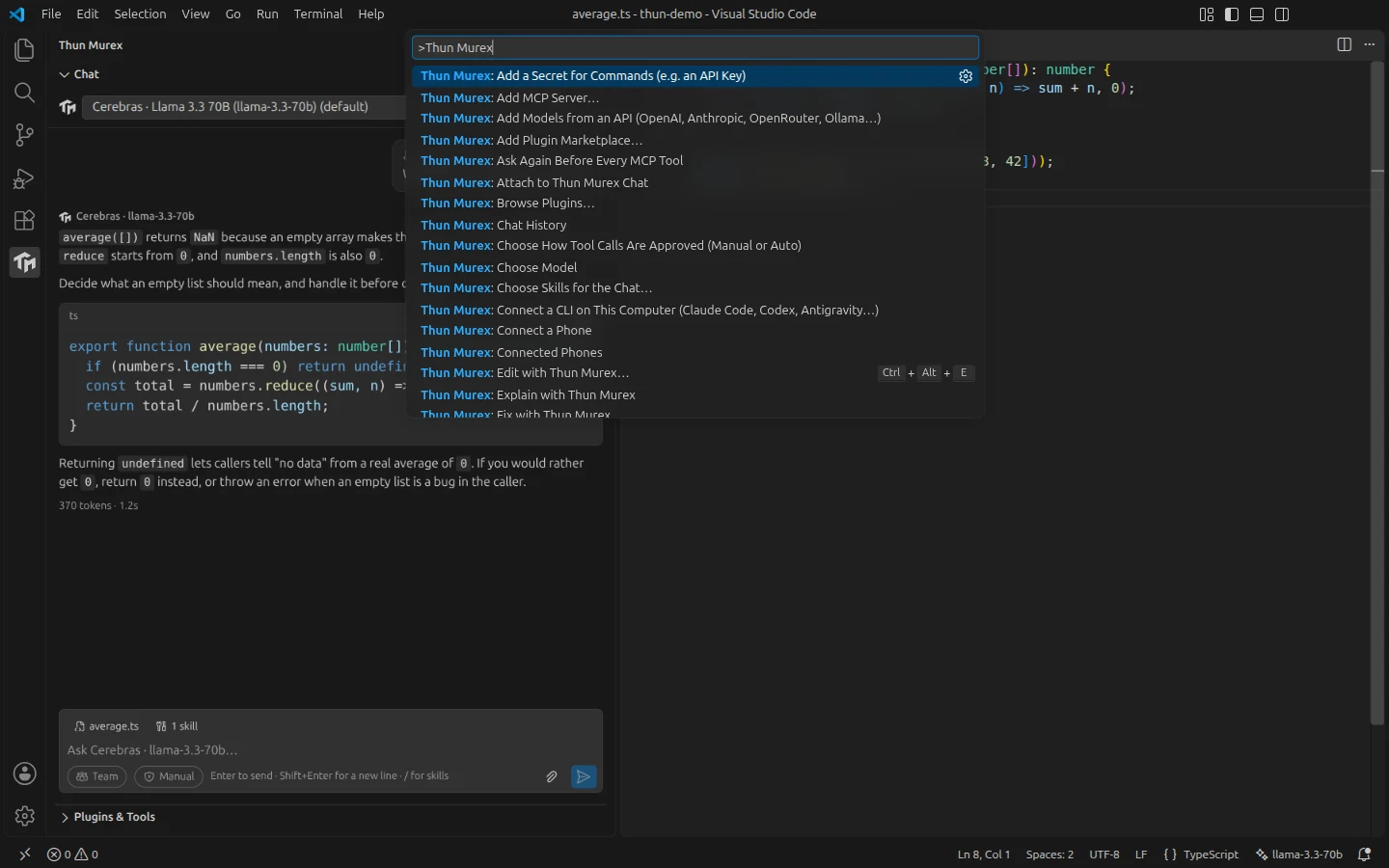
VS Code. The commands, in the palette. -
Phone. Pairing: run Connect a Phone in VS Code and scan the code.
The VS Code and phone screenshots use a stand-in gateway with made-up models and a made-up conversation. The console screenshots are the command-line gateway, started in a clean home folder, with made-up access tokens. The documentation page is the live public one.